Complete the Access Survey
Existing Test Kitchen members can fill out the survey to request sandbox access. This helps the team track participants and ensure proper onboarding.
Receive Your Confirmation
Once your survey is reviewed, you will receive an email confirmation granting you sandbox access. Watch for an email from:
Have questions in the meantime? Reach out to the contacts above.
Navigate to Toast Tab
Open your browser and go to Toast's web platform. Once logged in, locate the account switcher in the top header — right next to the Toast logo.
Select the "Toast Inventory Test Kitchen (Demo)" account from the header dropdown.
Navigate to Retail & the Item Library
From the left-hand navigation, go to Retail. The Item Library is your central hub — it provides a full overview of every item you stock track against.
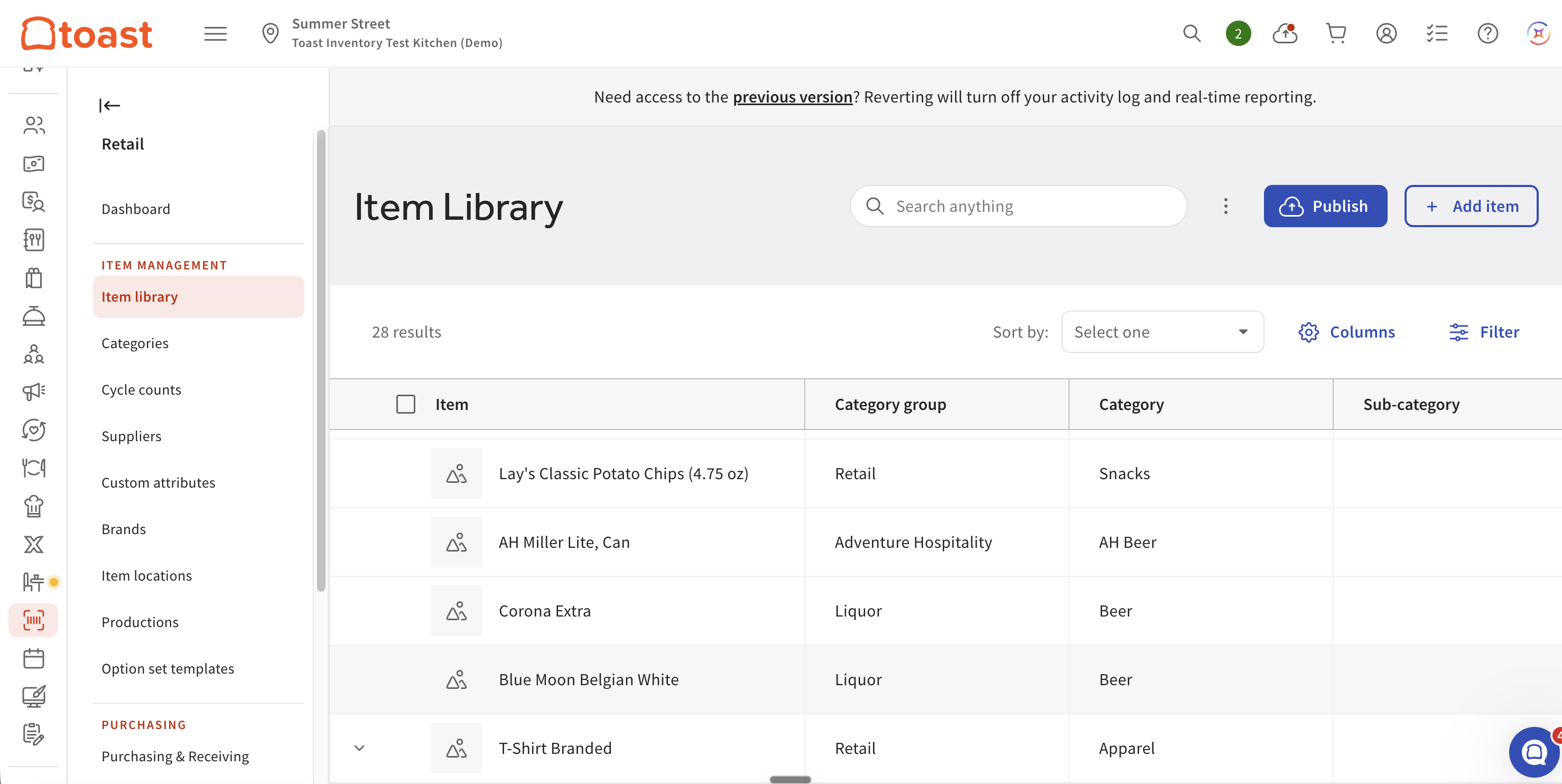
Under "Item Management," select Item Library to see all trackable items.
Thank you for participating in the Test Kitchen program. Your feedback helps shape the future of Toast IQ Inventory features. If you have any questions along the way, reach out to [email protected].