Complete the Access Survey
Existing Test Kitchen members can fill out the survey to request production access. In the survey, list every account name you want Toast IQ Inventory enabled on — the team will use these names to enable access on the correct accounts.
Include the full, exact account name for each location. If you have multiple locations, list them all.
Receive Your Confirmation
The team will review your survey, enable access on the account(s) you listed, and send you a confirmation email. No further action is needed until you receive that email.
Navigate to Your Account
Once confirmed, log in to Toast Tab and navigate to the account that was enabled. From the left-hand navigation, go to Retail and then Item Library — your one-stop shop for all items you stock track against.
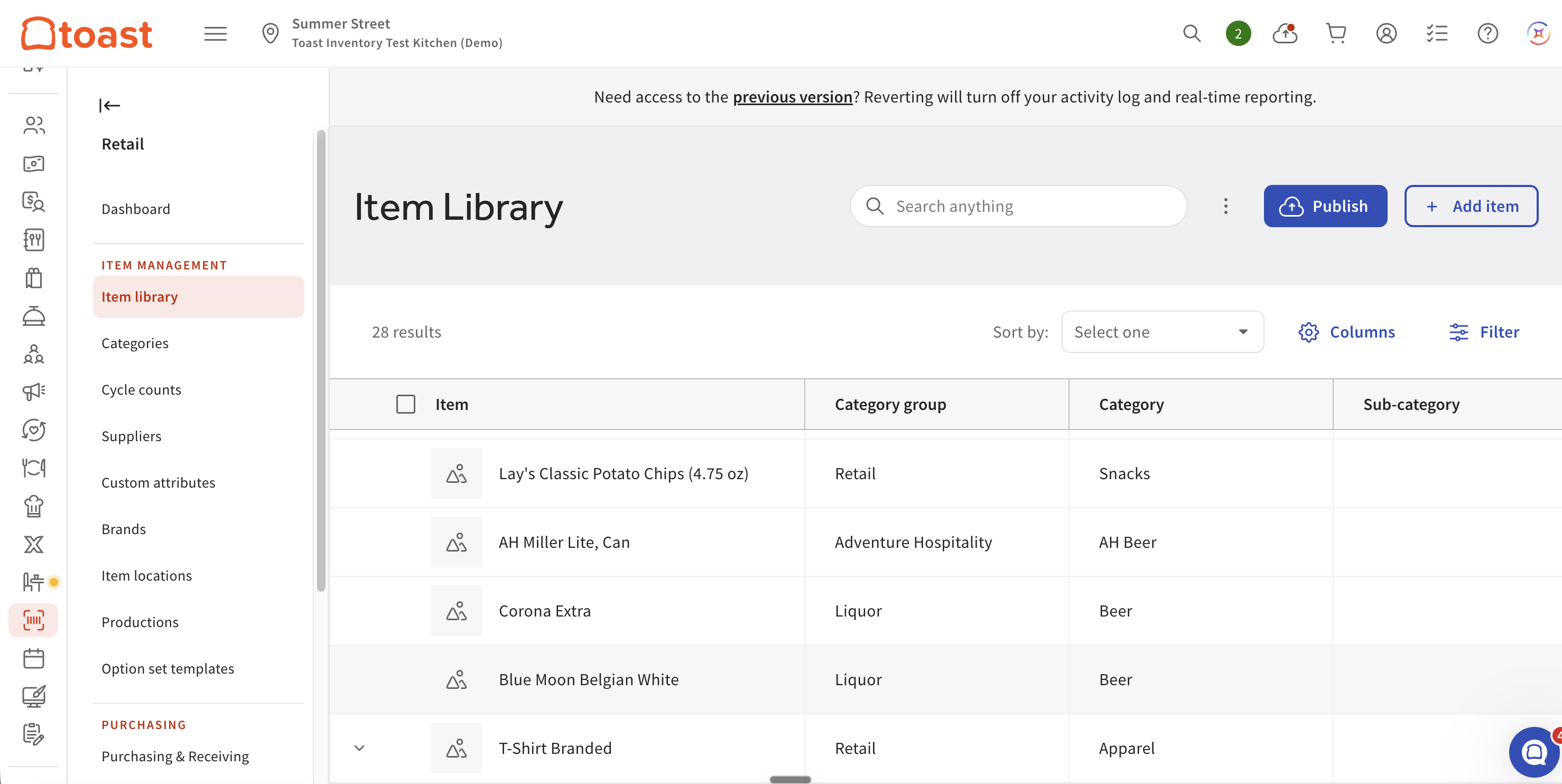
Under "Item Management," select Item Library to see all trackable items.
Once access is live on your account, explore Retail and the Item Library to start testing. Questions? Reach out to [email protected].